Showing posts with label WPF. Show all posts

Saturday, January 7, 2012

WPF, XAML: TreeView HierarchicalDataTemplate databinding to unknown XML/DataSource

Problem description
  • I wish to bind my TreeView to a datasource.
  • The TreeView should build its child nodes dynamically (unknows childs in datasource).
  • Each node should display its data or (if no data) its element name.

Solution
You need to use and understand these parts:
  1. HierarchicalDataTemplate
    1. HierarchicalDataTemplate.Triggers
  2. Binding XPath

Usage Example
Just copy paste and start playing / reading each part's help.

XAML
Code Snippet
  1. <Window x:Class="TreeViewDataBinding.Window1"
  2.     xmlns="http://schemas.microsoft.com/winfx/2006/xaml/presentation"
  3.     xmlns:x="http://schemas.microsoft.com/winfx/2006/xaml"
  4.     Title="Window1" Height="300" Width="300">
  5.     <Window.Resources>
  6.         <HierarchicalDataTemplate x:Key="NodeTemplate" >
  7.  
  8.             <TextBlock x:Name="tbName" Text="?" />
  9.  
  10.             <HierarchicalDataTemplate.ItemsSource>
  11.                 <Binding XPath="child::node()" />
  12.             </HierarchicalDataTemplate.ItemsSource>
  13.  
  14.             <HierarchicalDataTemplate.Triggers>
  15.                 <DataTrigger Binding="{Binding Path=NodeType}" Value="Text">
  16.                     <Setter TargetName="tbName" Property="Text" Value="{Binding Path=Value}"/>
  17.                 </DataTrigger>
  18.                 <DataTrigger Binding="{Binding Path=NodeType}" Value="Element">
  19.                     <Setter TargetName="tbName" Property="Text" Value="{Binding Path=Name}"/>
  20.                 </DataTrigger>
  21.             </HierarchicalDataTemplate.Triggers>
  22.         </HierarchicalDataTemplate>
  23.  
  24.         <XmlDataProvider x:Key="xmlDataProvider"/>
  25.     </Window.Resources>
  26.     
  27.     <StackPanel>
  28.         <Button Click="Button_Click">Reload</Button>
  29.         
  30.         <TreeView
  31.             ItemsSource="{Binding Source={StaticResource xmlDataProvider}, XPath=*}"
  32.             ItemTemplate="{StaticResource NodeTemplate}" />
  33.     </StackPanel>
  34. </Window>

Code behind
Code Snippet
  1. using System.Windows;
  2. using System.Windows.Data;
  3. using System;
  4.  
  5. namespace TreeViewDataBinding
  6. {
  7.     public partial class Window1 : Window
  8.     {
  9.         public Window1()
  10.         {
  11.             InitializeComponent();
  12.         }
  13.  
  14.         private void Button_Click(object sender, RoutedEventArgs e)
  15.         {
  16.             var provider = (XmlDataProvider)this.Resources["xmlDataProvider"];
  17.             provider.Source = new Uri(@"Data\standard.xml", UriKind.Relative);
  18.         }
  19.     }
  20. }

Additional files


Performance
I was able to load 100MB of xml data in around ~6 seconds first time, ~4 seconds from the second time.

Testbench station
  • i7 (8 cores) @ 2.80GHz
  • 4.00GB RAM
  • 64-Bit OS, Win7 Pro.
CPU & memory usage
The CPU was at idle when i started, the RAM was at the base line.

Results

Resources

Hope it helps.

Sunday, December 11, 2011

WPF CodePlex toolkit, charting made easy...

Charting made easy: graph, pie, bars, points... 
Free, opensource, maintained.


"The WPF Toolkit is a collection of WPF features and components that are being made available outside of the normal .NET Framework ship cycle."


Sources

Friday, December 9, 2011

WPF: FlowDocument control

Please be aware FlowDocument control in WPF, this can easy your life when needed.

Pictures that say it all


The diagram shows the objects most typically used with flow content.


Sources

WPF XAML example: Binding FontSize to a Slider

Code snippet

Code Snippet
  1. <TextBlock Text="Hi there." FontSize="{Binding ElementName=mySlider, Path=Value}" />
  2. <Slider Minimum="8" Maximum="32" x:Name="mySlider" Value="12" />


Result

WPF XAML example: Rich texted ToolTip with italic, color and more...

Example
In this example I'll demonstrate how to add a ToolTip to a TextBox.
The ToolTip should be colored and italic.

Code snippet

Code Snippet
  1. <TextBox x:Name="SampleText"
  2.     TextWrapping="Wrap">
  3.     
  4.     <TextBox.ToolTip>
  5.         <TextBlock>
  6.             <Italic Foreground="Red">Instructions: </Italic> Type here to change the preview text.
  7.         </TextBlock>
  8.     </TextBox.ToolTip>
  9.     
  10.     The quick brown fox jumps over the lazy dog.
  11. </TextBox>


Result


Sources

WPF XAML TIP: Label with Target + Control composition == Hotkey control

Code snippet

Code Snippet
  1. <Border DockPanel.Dock="Top">
  2.     <StackPanel>
  3.         <Label
  4.             Content="_Last Name:"
  5.             Target="{Binding ElementName=lastName}" />
  6.         <TextBox x:Name="lastName" Width="100" HorizontalAlignment="Left"/>
  7.     </StackPanel>
  8. </Border>


Usage 
Press ALT+L to focus the TextBox control 'lastName'.

Result

WPF: TextBox with SpellCheck and ToolTip XAML example

Code snippet

Code Snippet
  1. <TextBox
  2.     Width="200"
  3.     SpellCheck.IsEnabled="True"
  4.     ToolTip="Tips for this input-box here..." />


Results

WPF: Rich TextBlock XAML example

"The TextBlock was designed specifically for the purpose of showing small amounts of flowing rich text to the user.
It is the perfect element for displaying instructions or summary information."


Usage example
I have a program that users can communicate with each other. I wish to add the feature of bold, colored, line-breaking and icons to that chat.

Here is an example I've found to illustrate it:


Example
Code Snippet
  1. <TextBlock FontSize="10" TextWrapping="Wrap" >
  2.     <Image Stretch="UniformToFill" Width="32" Height="32" Source="http://upload.wikimedia.org/wikipedia/en/b/b0/Avatar-Teaser-Poster.jpg" Margin="2 2 2 2" />
  3.                     <Bold><Italic FontSize="12" Foreground="DarkGreen">ShloEmi:</Italic></Bold><LineBreak />
  4.     <Bold><Italic FontSize="14" Foreground="BlueViolet">H</Italic></Bold>ave  fun with <Bold>TextBlock's</Bold>.<LineBreak />
  5.     <AccessText Foreground="Blue">It's easy when you have an example </AccessText> <Image Source="http://upload.wikimedia.org/wikipedia/commons/thumb/8/85/Smiley.svg/50px-Smiley.svg.png" Width="16" Height="16"></Image>
  6. </TextBlock>

Result


Have fun...

Thursday, December 8, 2011

About WPF

Here is my experiance with learning and programming WPF in the last year:

First let me tell you that - WPF IS GREAT!
Simple put - WPF let you do layers of controls and decorators.
This means you can composite anything in easy.
The things I did with WPF were not easy at all in Win32-API and not even in .Net using GDI+.


Let's start with a complext WPF sample I've found:
http://10rem.net/blog/2010/10/28/the-present-and-future-of-wpf


Usage example

I wish to have a character drawn, later on I wish to add that character a life status, later on - an icon on the top-right to reperesent which guild is he in... and more...

Of course It's solvable using the Decorator-Pattern using the draw to add more pictures, but - you need to BitBlt ... and more complex stuff.

With WPF, however, you layer it all with opacity, or transparency, which is the same solution as before with one exception - you write it declarativly and in 10 min :-).

The learning curve

I already had a very rich epreriance with WinForms/MFC/Win32 GUI + I know Design-Patterns pretty good, so I had a good head-start ==> It was easier to learn, the elements were already in my mind.


First I started with tutorials to feel WPF, and books.
The most used were (recomendation ordered):
  1. Tutorials:
    1. WPF Tutorial
    2. 'Hello WPF' ... http://www.wpftutorial.net/HelloWPF.html
  2. Books:
    1. http://www.amazon.com/Sams-Teach-Yourself-WPF-Hours/dp/0672329859
    2. http://www.amazon.com/2010-NET-Platform-Andrew-Troelsen/dp/1430225491
      1. The chapters about WPF (Chapter 27).

In between, I started using it in my solutions, strted with simple solutions (traditional GUI programming), used the known and common parts (buttons, labels, textboxes...), practiced and learned the basics.

Bottom line 
After touching WPF there is no going back, I'll always prefer WPF over other solutions, unless I have no choice, like - "the OS doesn't support DirectX 9" :-(.


Have a good and productive learning - WPF worth it!

Resources

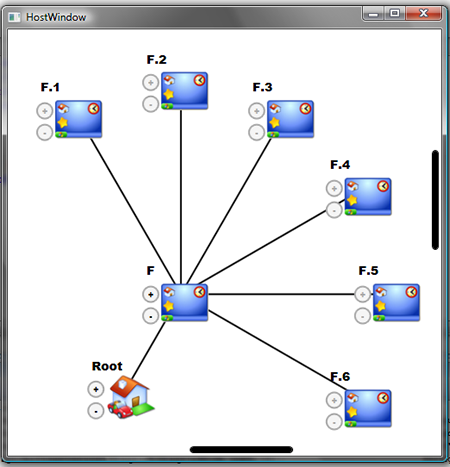
WPF: Radial Panel, custom panel

Here is a cool 'custom panel' I've found that might be very handy...
The Joy Of Programming: A Simple Radial Panel for WPF and SilverLight

Usage examples
Nicer selection menu, Clock digits, dynamic elements in radial presentation rather than list...

Example outputs

source - http://www.codeproject.com/KB/WPF/SpiderControl.aspx

WPF: Bulletdecorator XAML example

BulletDecorator is basically like any editor bullet (like MS word's bullet). You can specify how to draw the bullet itself and decorate what ever you need.

Suppose we want to do the following effect in WPF:

  • This is a bullet
Here is the source for it:
Code Snippet
  1. <BulletDecorator>
  2.     <BulletDecorator.Bullet>
  3.         <Polygon Margin=" 2, 0, 0, 0" Points="0, 5 5, 0 10, 5 5, 10" Fill=" Blue" />
  4.     </BulletDecorator.Bullet>
  5.     <TextBlock Margin="10, 0, 0, 0" Text="This is a bullet" />
  6. </BulletDecorator>


And here is the results:


Source - Bulletdecorator in WPF | Controls | w3mentor